¶ Getting Started with RSX Engine
This guide is for users that are looking to get started as first time RSX Engine users. It does not matter if you have used other 3D engines before or not, this track will help you get started within minutes!
¶ Transitioning from Unity Engine
If you're a Unity user, you will be confident with RSX Engine right from the start. A lot of concepts such as Components and Scene Objects (Unity's GameObject) are very similar in nature.
¶ Transitioning from Unreal Engine
As an Unreal Engine user, a lot of the concepts that accelerate the development workflow will transition neatly to RSX Engine. The Carbon Logic Graph (Unreal's Blueprint) and the Carbon Material (Unreal's Node-Based Material) will make it easy for you to build on your pre-existing knowledge about how to build scenes and application logic.
¶ Step 1: Installing RSX Engine
Start by confirming your hardware and software meet the recommended specs, then choose whether to work in the browser or the desktop app based on your workflow. You’ll see which browsers support WebGPU for smooth web editing and the quickest way to launch RSX online. Prefer a native setup? Download, install, and update the desktop app in a few clicks so you’re ready to open RSX and begin your first project.
¶ Step 2: Creating your First Project
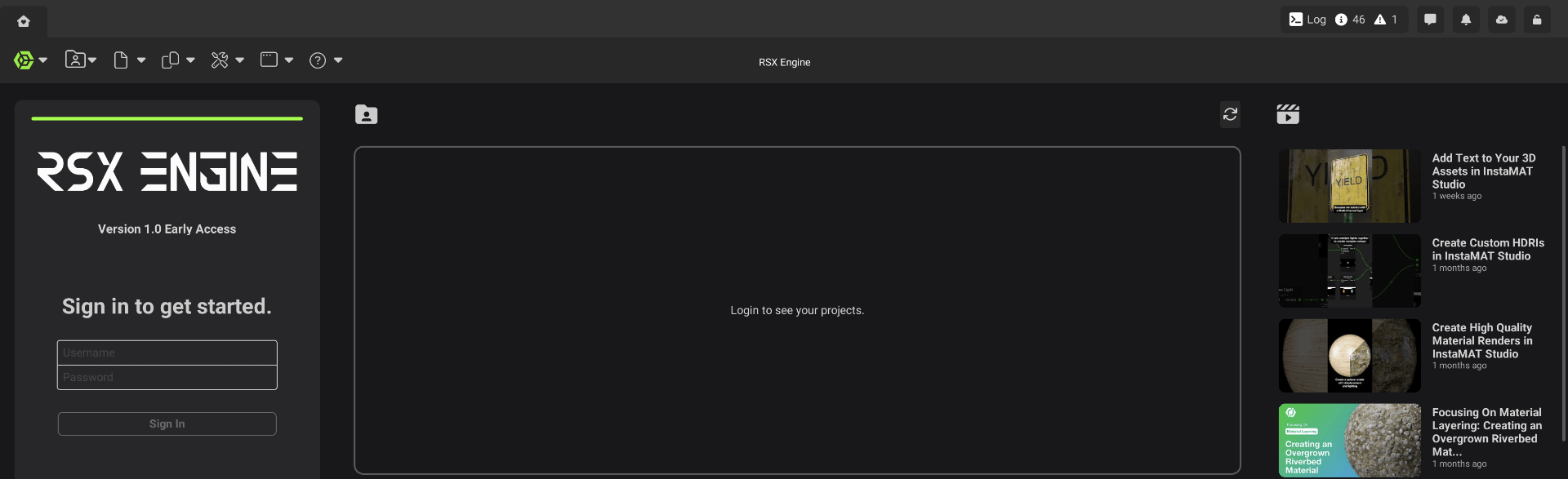
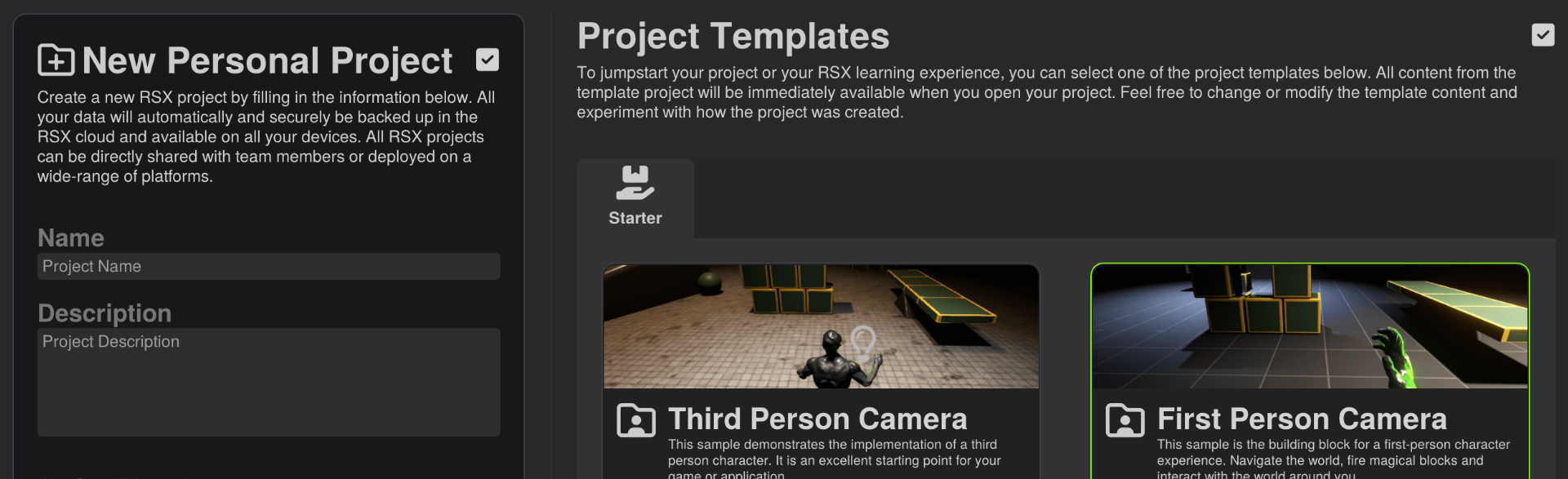
Sign in with your Abstract ID and get oriented on the Home screen so you can find projects fast and access key controls. Explore your project list, team selector, and quick actions, then spin up a new project with the First Person Camera starter. In minutes, your workspace opens ready to explore and build.
➡️ Click here to create your first project
¶ Step 3: Learn Editor Basics
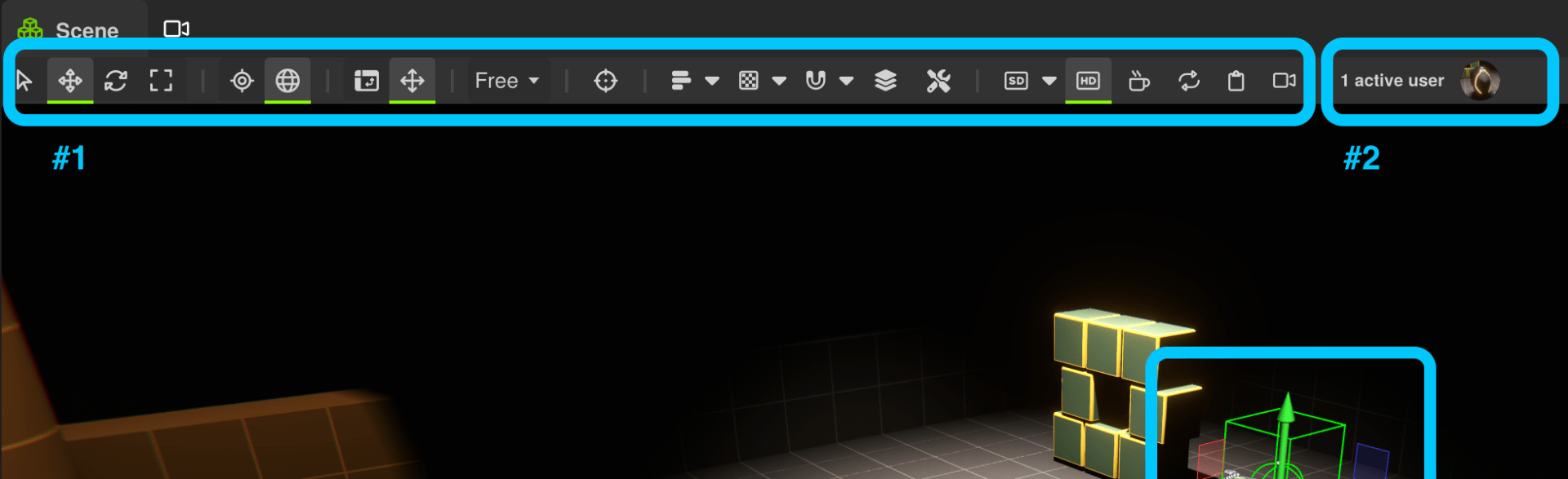
Get a high‑level tour of the RSX Editor so you know where to find the menus, panels, and toolbars you’ll use every day. The Scene Key Window anchors your work, while the Outliner, Library, and Inspectors help you browse, organize, and fine‑tune. You’ll also see how to customize the layout by docking, tabbing, and rearranging views to fit your flow.
➡️ Click here to discover the RSX Editor
¶ Step 4: Scene Objects and Components
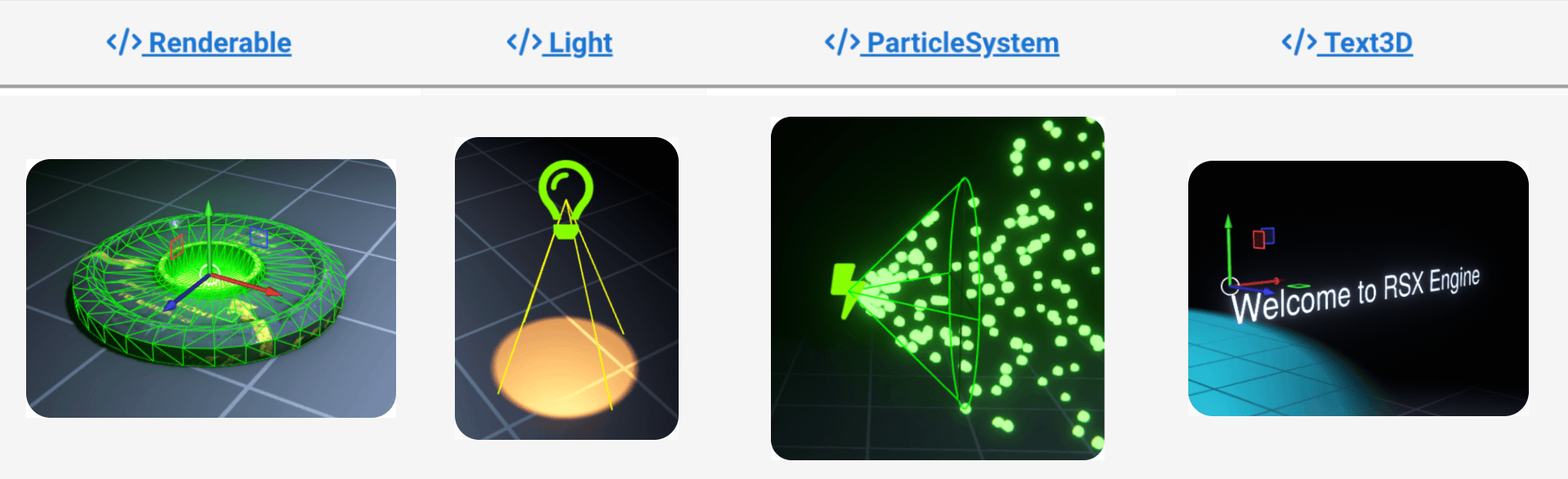
Meet Scene Objects, the building blocks of your worlds, and see how parenting and components create a flexible hierarchy. You’ll create new objects, adjust transforms, and manage components in the Scene Object Inspector so your objects behave as intended. Fat Components bundle common capabilities like rendering and physics for faster setup and better performance.
➡️ Click here for more on Scene Objects and Components
¶ Step 5: Working with Resources
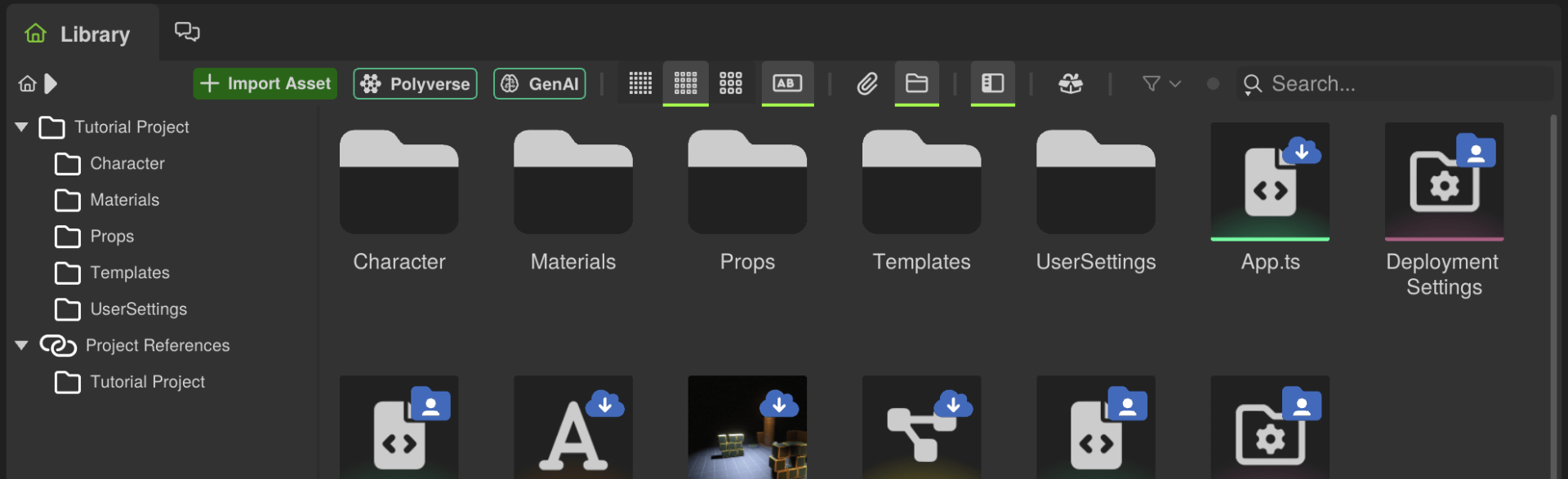
Get familiar with resources that power your project, from meshes and materials to audio, animations, and custom types. You’ll browse and organize the Library, import common formats with sensible defaults, and open resources for quick edits. Handles and UUIDs keep links stable across scenes while cloud sync manages versioning.
➡️ Click here to learn more about resources
¶ Step 6: Team Collaboration and Versioning
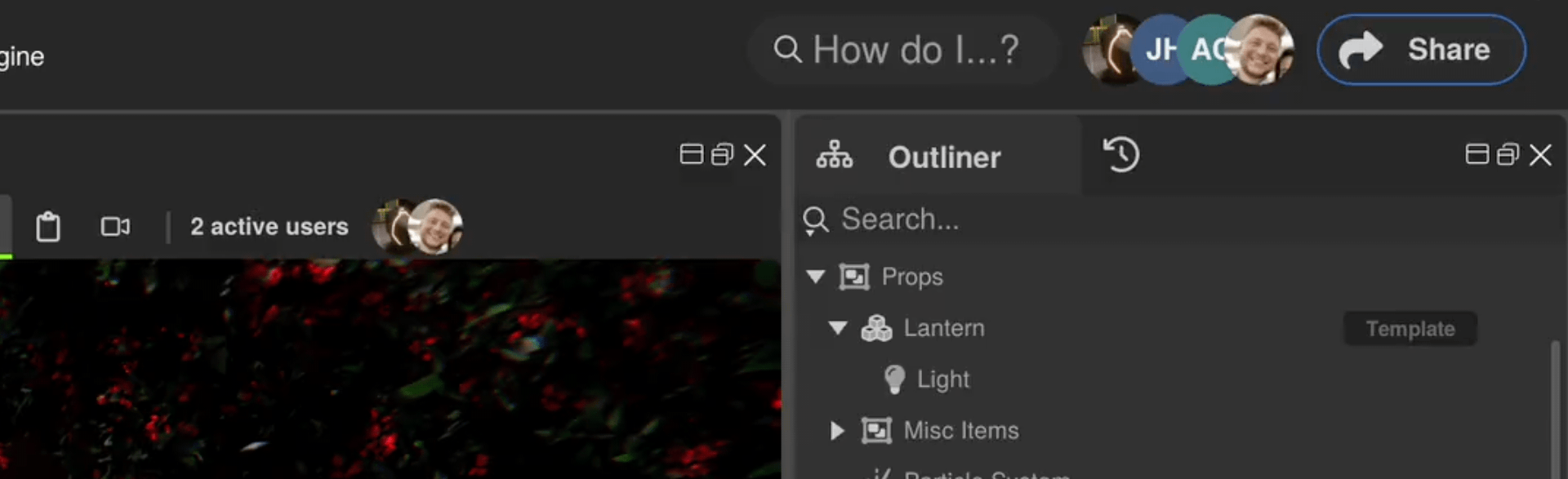
Learn how to collaborate in real time on Cloud Projects so your team can edit scenes together, see presence, and communicate with chat and comments. You’ll invite teammates, set permissions, and know what syncs automatically, plus lock resources when you need focused edits. Versioning with auto‑commits, conflict resolution, and rollbacks keeps changes traceable and safe.
➡️ Click here to discover collaboration and versioning in RSX Engine
¶ Step 7: Develop Simulation Logic
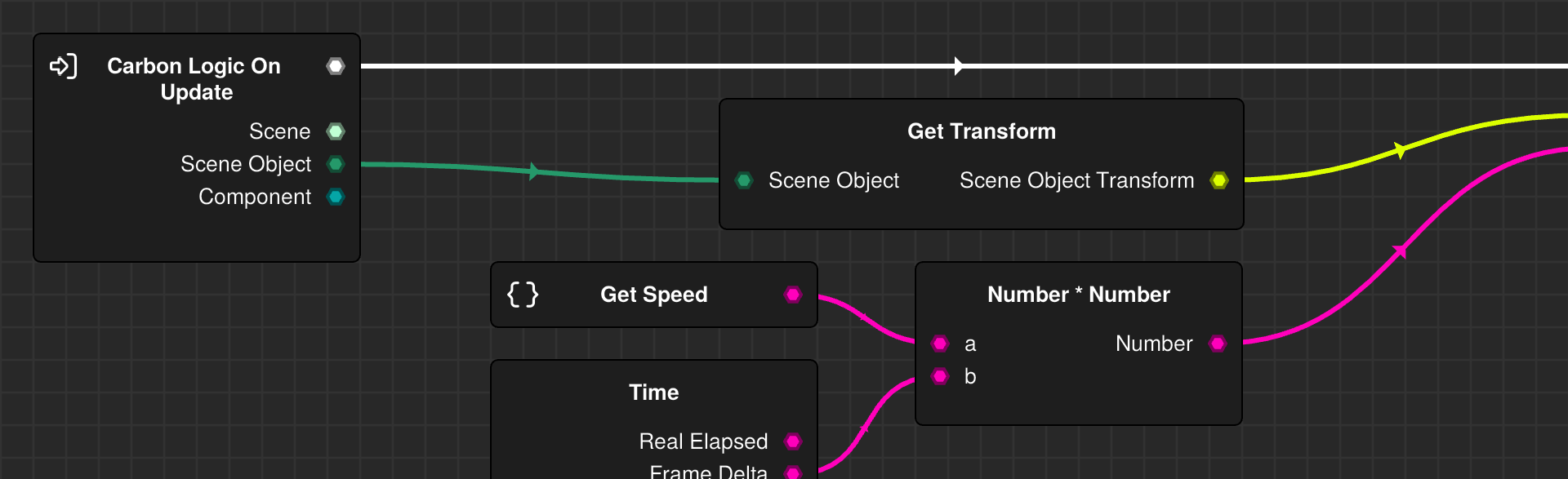
Bring behavior to your scenes with TypeScript and the Carbon Logic Graph, choosing the workflow that fits your style. You’ll connect components to Scene Objects, use lifecycle hooks, and wire up a simple rotator to see instant results. Compare code and visual graphs side by side, then mix them in the same project when it makes sense.
➡️ Click here to add logic to your scenes
¶ Step 8: Use Templates to Build Modular Entities
Build reusable, modular assets with Templates that you can instance across scenes and customize with per‑instance overrides. You’ll create a Template from a small hierarchy, add instances from the Library, and adjust properties without breaking the link. Updates to the source propagate while overrides persist, and you can nest Templates or break the link for full independence.
➡️ Click here to discover templates
Screenshot
¶ Step 9: Deploying your App as a Standalone Executable
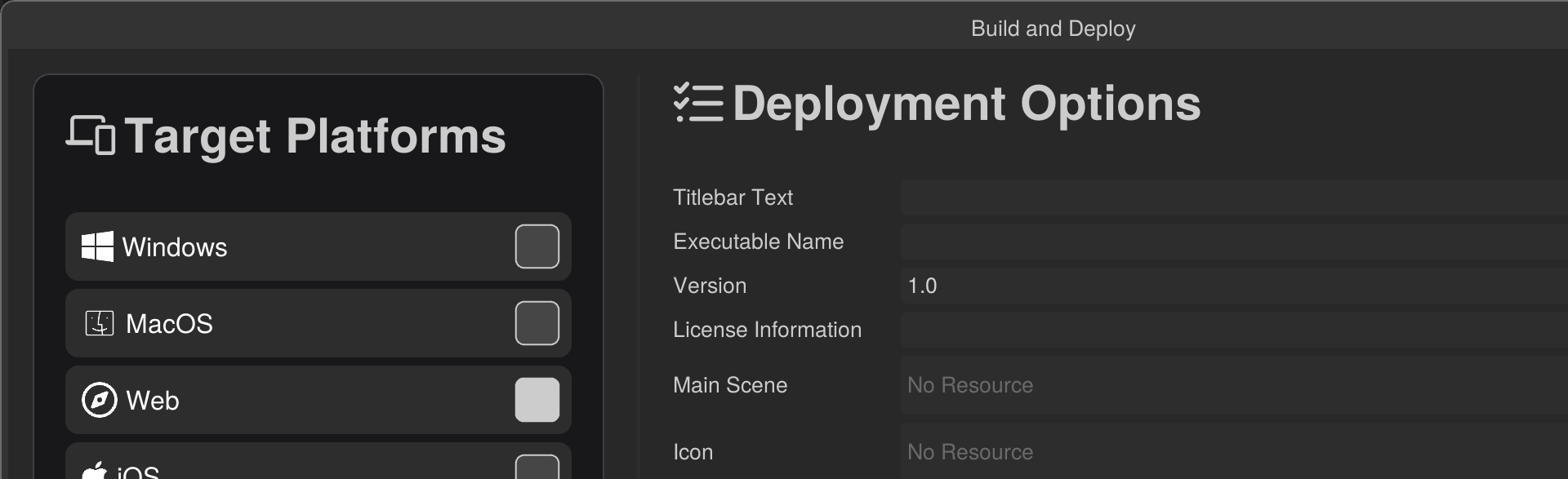
Turn your RSX project into a standalone app using the Deployment Window so you can share it on desktop or the web. Choose a target, set essentials like the main scene and executable name, gather resources, and build. You’ll run the result, verify assets, and troubleshoot common issues like missing files or browser support.
➡️ Click here to deploy your app