If you haven't already, open RSX Engine in another tab, or another window.
¶ Requirements
If you haven't created your Abstract ID account yet, head over to www.rsxengine.com and create your free account. The free subscription provides you with everything you need to get started. Head over to https://rsxengine.com/licensing/ to learn about the features of your free plan vs paid plans.
¶ Logging into RSX Engine with your Abstract ID
Once you've signed up for your free Abstract ID account, open RSX Engine in another tab, or another window.
You should be greeted with RSX Engine's home screen that you can see below.
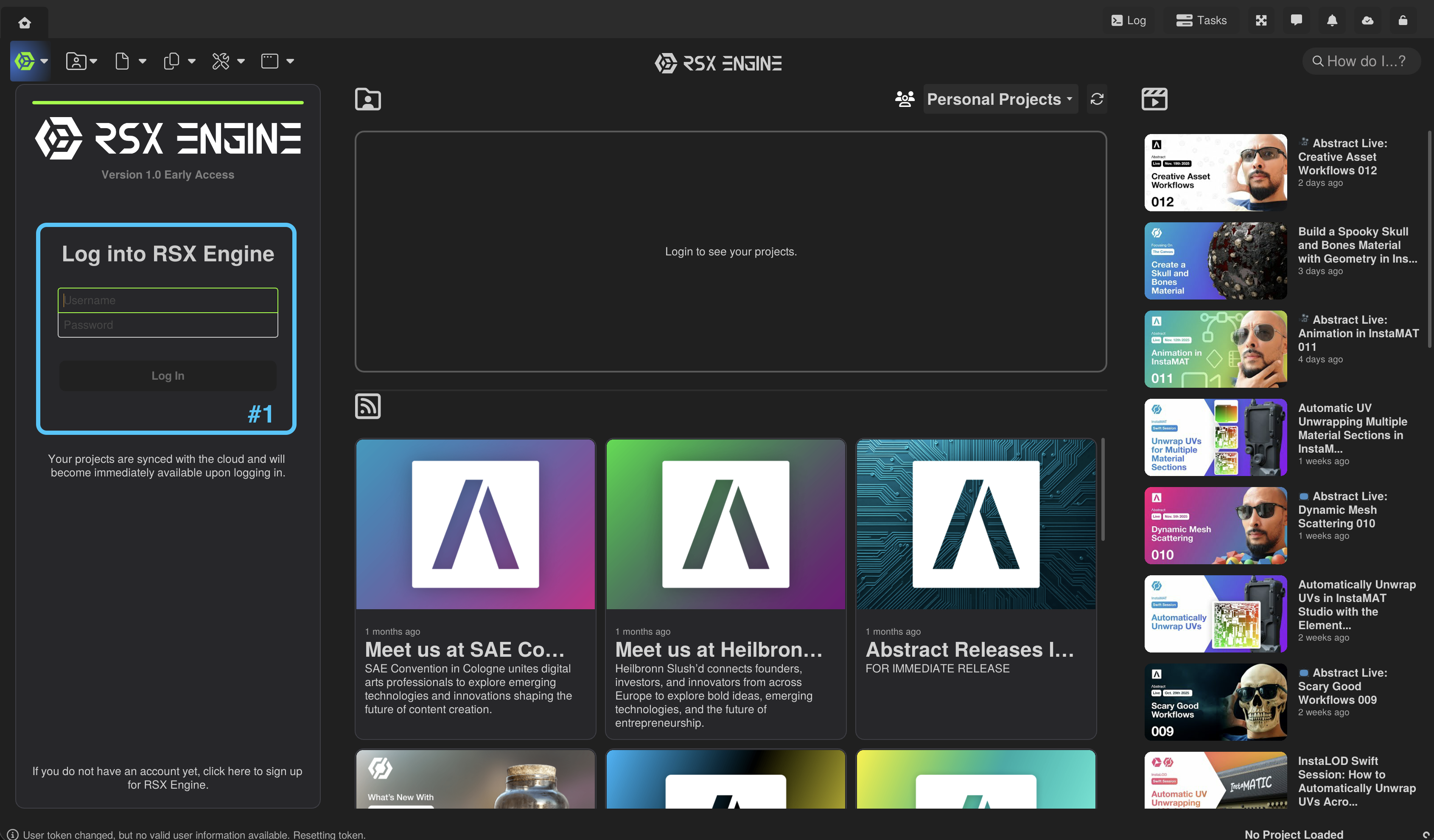
Even when you're not logged in, you should be able to see the latest news and recent educational videos on the home page.
- Enter your username and password in the area marked with #1
- Click "Log In" to proceed.
¶ Navigating the RSX Engine Home
Now that you're logged in, the user-interface should have transformed to present you with more options and instant access to your projects.
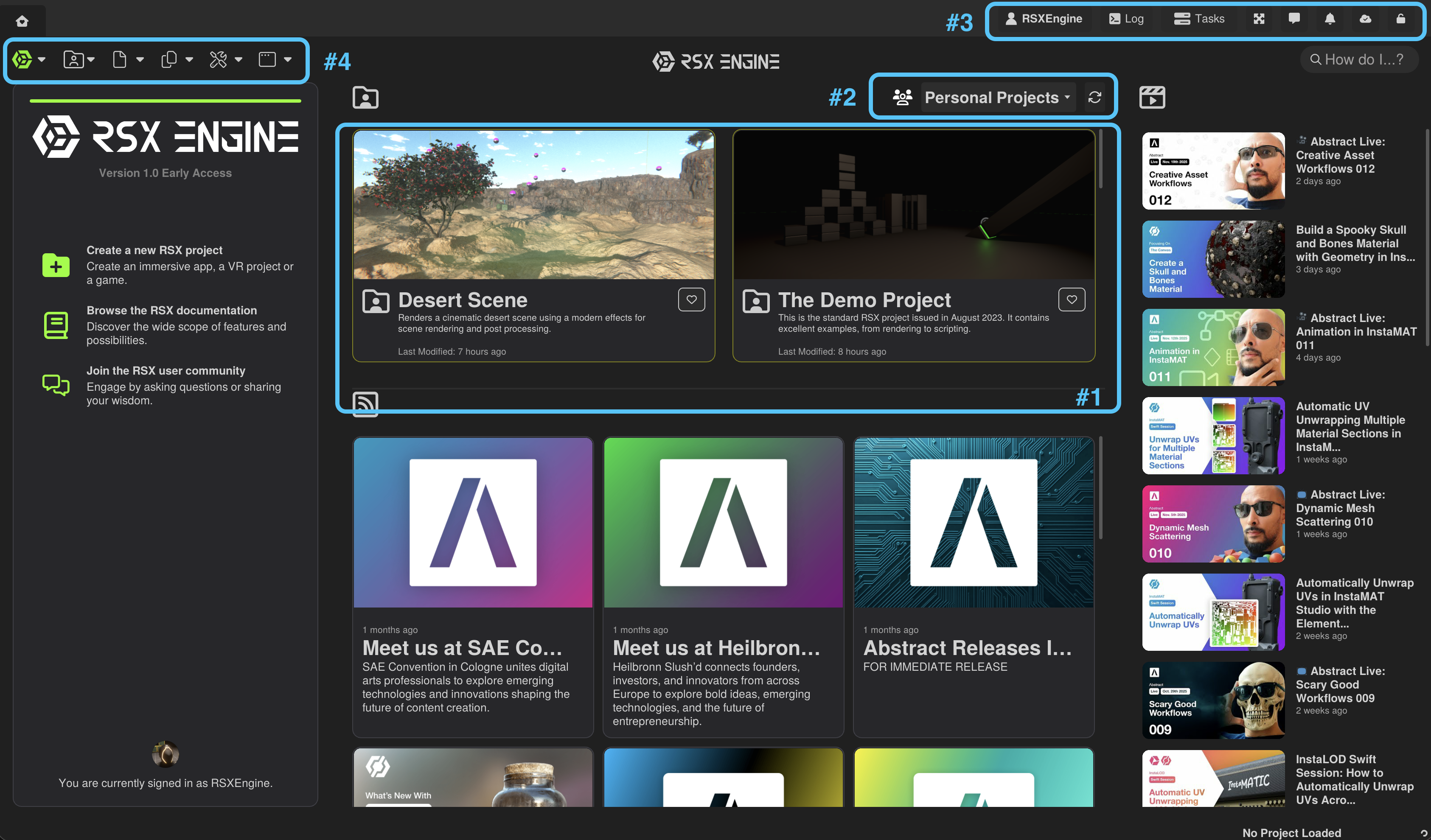
- Sidebar: The login screen transformed into a sidebar, that provides you with options to create a new project, browse the online documentation and to join the community forums.
- #1: Your projects, you can find all projects your account has access to in this area. If you scroll to the end of the list, you'll find a button that lets you create a new project.
- #2: Team selection, using this drop down you can choose your active team. If are not part of any RSX team, you will only see "Personal Projects" here. The refresh button can be used to reload the list of projects.
- #3: Key window actions, these actions will always be visible, no matter what context you are in. From left to right, the following options are listed:
- User Account, click the button to go straight to the account website.
- Log activity, you can see the number of log messages that appeared since that last clear. Clicking the button opens a popup that shows the log activity.
- Tasks, when RSX processes tasks in the background this button will change to indicate the number of asynchronous tasks. Clicking the button shows a popup with the asynchronous/background tasks currently being processed.
- Fullscreen Toggle, click this button to switch between fullscreen and windowed mode.
- Team Chat, click to open the team chat.
- Notifications, click to see recent notifications.
- Cloud sync status, click to see the status of your cloud-based version control. When files are uploaded or downloaded, you can find the information in the popup.
- UI Lock, click this button to prevent windows from being repositioned or undocked.
¶ Creating your first RSX Engine Project
Now that you're familiar with the user interface, let's create a new project. Click on the Create a new RSX Project button in the sidebar, or in your project list.
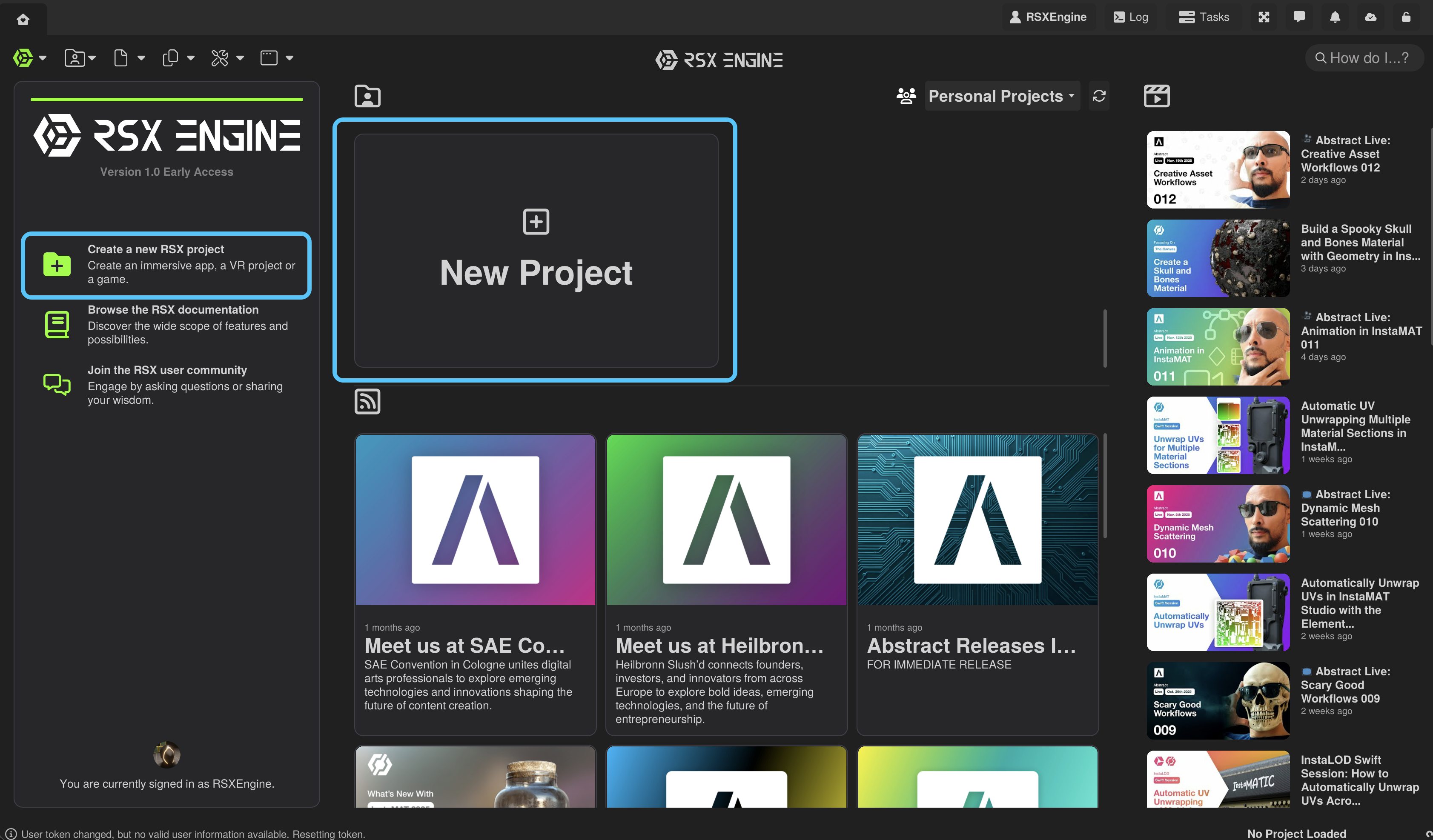
You will then be presented with a window, that lets you either create a project from scratch, or using one of the tutorials currently available.
The list of tutorial and sample projects is ever growing. Keep checking back for updates to existing projects and entirely new experiences.
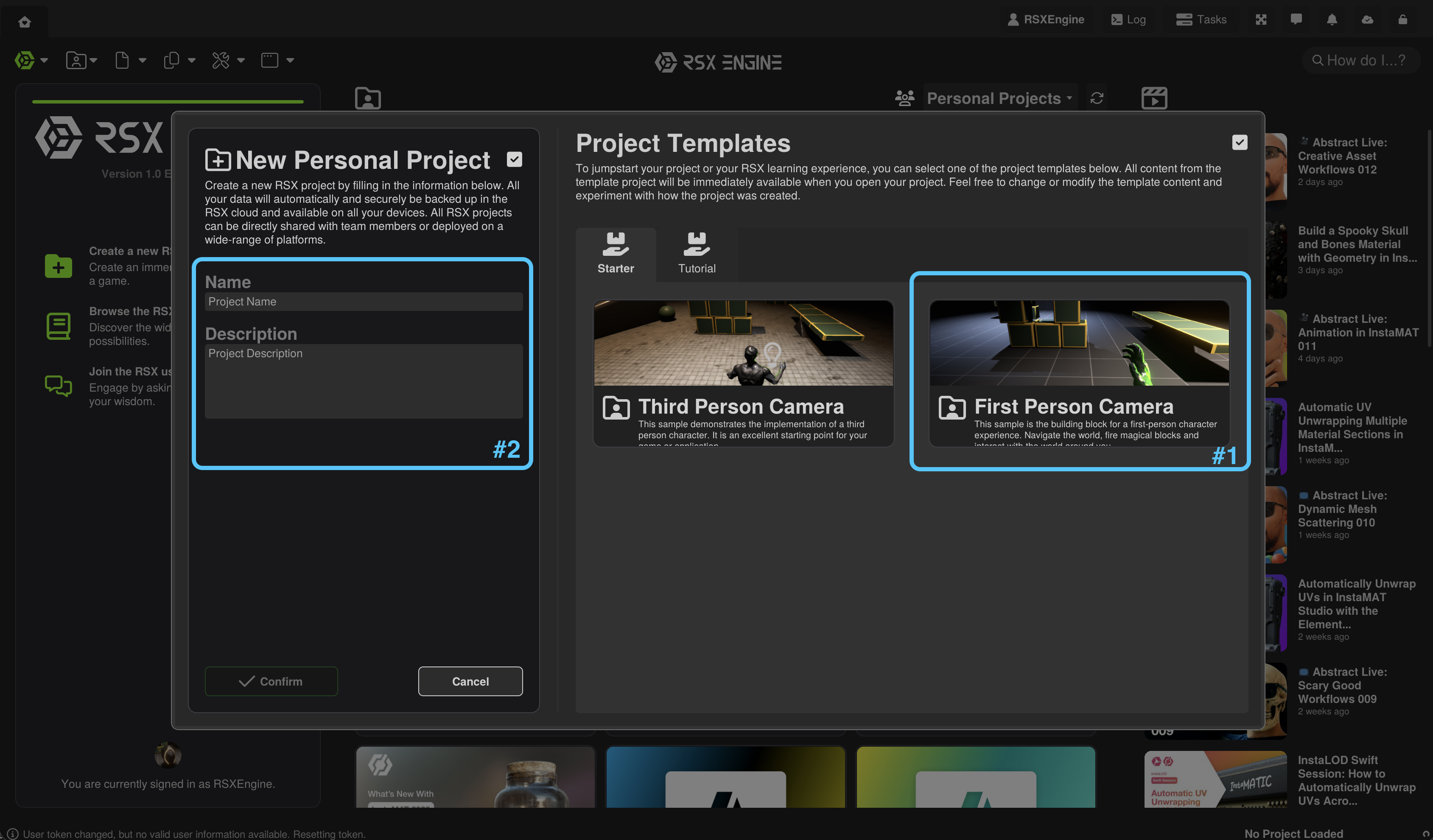
Upon clicking the button to create a project, you should be presented with a screen, similar to what you see above.
- Select First Person Camera from the area marked #1.
- Enter a name and a description in the area marked #2.
- Click Confirm to create your project based on the selected starter tutorial project.
RSX Engine will now create your sample project and automatically load it.
¶ Next Steps
🎉 Congratulations! You have created your first project with RSX Engine and you're now ready to learn about working with the RSX Engine Editor.